Loading...
Searching...
No Matches
First application: a quick note
Русская версия · User guides · Glossary
This tutorial develops a small note form in four steps. The finished application has an editor, Save and Clear draft buttons, keyboard shortcuts and a theme. Save copies the current editor text to a line below it; Clear draft clears the editor while leaving that saved line unchanged. The note lasts until the application exits, because this example does not write a file.
The animation shows the finished application: F2 saves the initial text, F3 clears the editor, a new note is entered, and F2 saves it. We will start with a form containing an editor, then add button actions, shortcuts and styling.
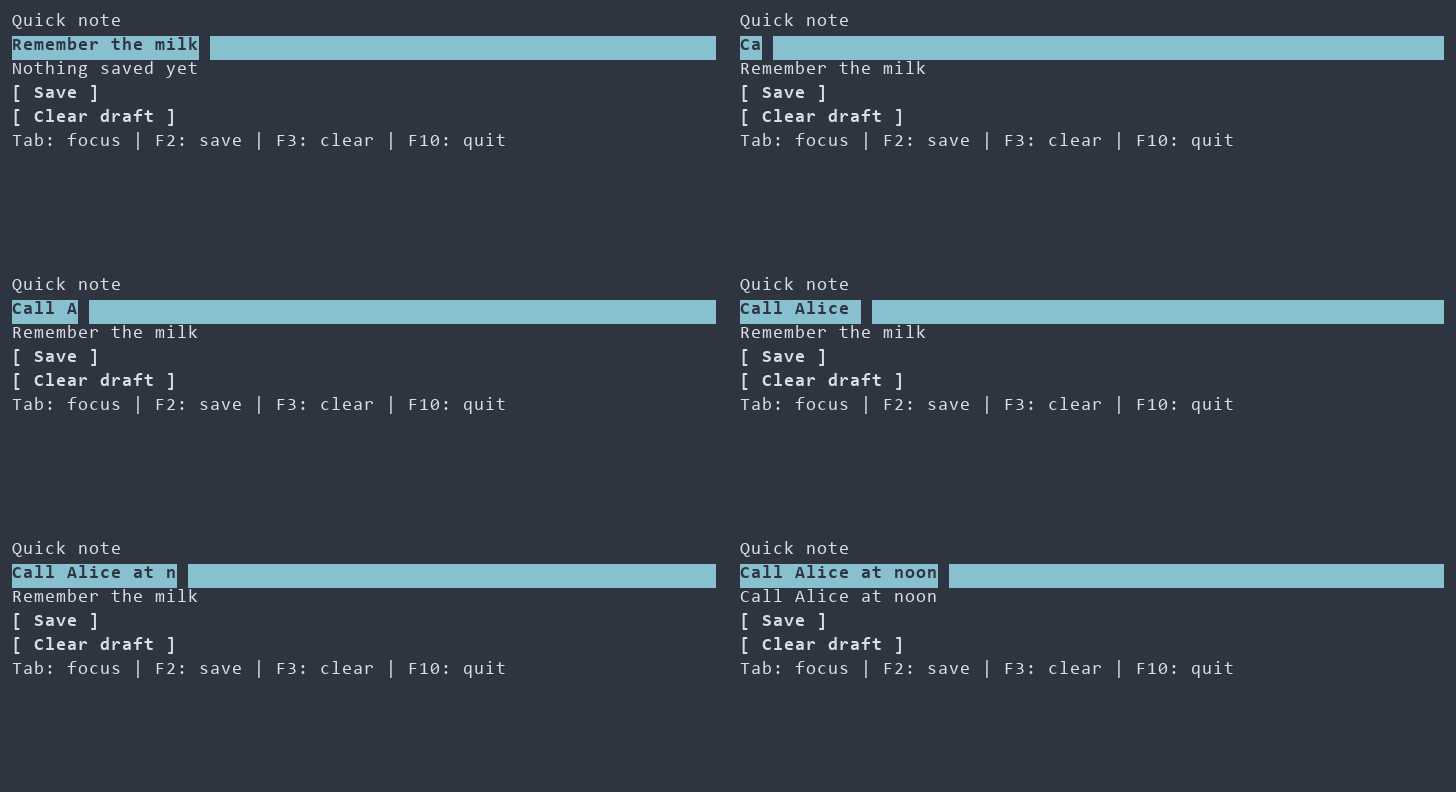
Quick note form with an editor, a saved line, and Save and Clear draft buttons.
1. A form you can run
You need Git, CMake 3.24+, Ninja and a toolchain supporting C99 and C++23, including <expected> and <format>. On Windows, an x64 Developer PowerShell for Visual Studio is required. Integration details are in the short guide.
For the first version, you can create a quick-note directory and save this code as main.cpp:
Complete main.cpp after step 1
#include <portals/ui.hpp>
int main() {
using namespace portals;
ui::Ref<LineEdit> draft;
auto scene = ui::scene(ui::vbox(
ui::label("Quick note"),
ui::lineEdit(draft, "Remember the milk"),
ui::label("Tab: focus | F10: quit")));
return scene
| ui::onKey("F10", ui::quit)
| ui::runApp();
}
Typed Widget observation; explicit composite specializations reuse their existing weak facades.
Definition ui_ref.hpp:761
Here, ui::vbox describes a vertical arrangement of controls. It is a recipe, which ui::scene stores in a scene. ui::Ref<LineEdit> draft provides access to the editor created from that recipe. When the program runs, you can edit Remember the milk; F10 exits the application.
The second file, CMakeLists.txt, connects this application to Portals:
cmake_minimum_required(VERSION 3.24)
project(QuickNote LANGUAGES CXX)
include(FetchContent)
FetchContent_Declare(portals
GIT_REPOSITORY https://github.com/ttldtor/portals.git
GIT_TAG cb0fdec5634cfc9d877791313bdee5da2c6aa18f
)
FetchContent_MakeAvailable(portals)
add_executable(quick_note main.cpp)
target_link_libraries(quick_note PRIVATE portals::core)
From quick-note, these commands configure, build and run the application:
cmake -S . -B build -G Ninja -DCMAKE_BUILD_TYPE=Release
cmake --build build --target quick_note
./build/quick_note
On Windows, the executable is build/quick_note.exe; it can be run in a terminal. During the first configuration, CMake downloads the pinned Portals revision. An existing local checkout can be used by adding -DFETCHCONTENT_SOURCE_DIR_PORTALS="C:/path/to/portals" to the configure command, substituting your path.
2. Showing the saved text
The first version has an editor, but no place to see a saved copy. After exiting the application, continue in the same main.cpp from step 1. The label and button need references of their own, placed after ui::Ref<LineEdit> draft;:
ui::Ref<Label> saved;
ui::Ref<Button> save;
Inside ui::vbox(...), the label and Save button follow the editor, with the hint label at the end:
ui::label(saved, "Nothing saved yet"),
ui::button(save, "Save"),
The saveNote action copies the editor text into the label. It belongs between the scene declaration and return scene; the ui::onClick stage connects it to the button before the existing F10 handler:
auto saveNote = [draft, saved] {
};
return scene
| ui::onClick(save, saveNote)
| ui::onKey("F10", ui::quit)
| ui::runApp();
TextProperty text(TextResolver resolver={}, std::source_location origin=std::source_location::current()) const
Definition ui_ref.hpp:1968
When Save is activated, saveNote reads the editor and assigns its current text to the label. The | operator attaches a UI stage to the scene, and ui::onClick connects the button to an action. The handler captures references by value; they observe the scene's controls and do not extend their lifetime. See control references for details.
Complete main.cpp after step 2
#include <portals/ui.hpp>
int main() {
using namespace portals;
ui::Ref<LineEdit> draft;
ui::Ref<Label> saved;
ui::Ref<Button> save;
auto scene = ui::scene(ui::vbox(
ui::label("Quick note"),
ui::lineEdit(draft, "Remember the milk"),
ui::label(saved, "Nothing saved yet"),
ui::button(save, "Save"),
ui::label("Tab: focus | F10: quit")));
auto saveNote = [draft, saved] {
};
return scene
| ui::onClick(save, saveNote)
| ui::onKey("F10", ui::quit)
| ui::runApp();
}
The build command from step 1 prepares this version. You can then run it with the same ./build/quick_note command. While the application is running, the text can be edited; Tab moves focus to Save, and Enter activates the focused button. The saved copy appears below the editor. Further edits leave it unchanged until Save is activated again.
3. Draft clearing and shortcuts
The form can now save a copy. The next version adds a separate way to clear the editor and shortcuts for both actions. After exiting the application, the next changes go into main.cpp from step 2. A reference for the new button follows ui::Ref<Button> save;:
ui::Ref<Button> clear;
Inside ui::vbox(...), the Clear draft button follows Save. The final hint label also lists the new shortcuts; the scene declaration becomes:
auto scene = ui::scene(ui::vbox(
ui::label("Quick note"),
ui::lineEdit(draft, "Remember the milk"),
ui::label(saved, "Nothing saved yet"),
ui::button(save, "Save"),
ui::button(clear, "Clear draft"),
ui::label("Tab: focus | F2: save | F3: clear | F10: quit")));
The clearDraft action clears the editor. After the existing saveNote action, it can be connected to the new button and F3; F2 can call the existing save action. The code from clearDraft through the end of the handler chain is:
auto clearDraft = [draft] {
draft.text() = "";
};
return scene
| ui::onClick(save, saveNote)
| ui::onClick(clear, clearDraft)
| ui::onKey("F2", saveNote)
| ui::onKey("F3", clearDraft)
| ui::onKey("F10", ui::quit)
| ui::runApp();
clearDraft clears only the editor; the saved line stays on screen. The Clear draft button and F3 invoke the same action. The Save button and F2 invoke the other action, saveNote, created in the previous step.
Complete main.cpp after step 3
#include <portals/ui.hpp>
int main() {
using namespace portals;
ui::Ref<LineEdit> draft;
ui::Ref<Label> saved;
ui::Ref<Button> save;
ui::Ref<Button> clear;
auto scene = ui::scene(ui::vbox(
ui::label("Quick note"),
ui::lineEdit(draft, "Remember the milk"),
ui::label(saved, "Nothing saved yet"),
ui::button(save, "Save"),
ui::button(clear, "Clear draft"),
ui::label("Tab: focus | F2: save | F3: clear | F10: quit")));
auto saveNote = [draft, saved] {
};
auto clearDraft = [draft] {
draft.text() = "";
};
return scene
| ui::onClick(save, saveNote)
| ui::onClick(clear, clearDraft)
| ui::onKey("F2", saveNote)
| ui::onKey("F3", clearDraft)
| ui::onKey("F10", ui::quit)
| ui::runApp();
}
After rebuilding and running, F2 saves the current text and F3 clears the editor. The saved line remains visible when the draft is cleared. New text can replace that line with another F2 press. Tab moves focus between the editor and buttons; Enter activates the focused button. The input guide describes other shortcut forms.
4. A theme and style
The final version adds a palette and a rule that changes button appearance. After exiting the application, the styling header can follow #include <portals/ui.hpp> in main.cpp from step 3:
#include <portals/ui_style.hpp>
The theme and style stages can precede the existing event handlers in the chain:
| ui::theme(nordTheme())
| ui::style("Button { min-width: 16; bold: true; }")
StyleSheet nordTheme()
ui::theme(nordTheme()) selects a palette. The PSS rule makes button text bold and sets a minimum width of 16 terminal cells. The references, form and handlers from step 3 remain part of the completed program. Styles and themes describe the available options.
Complete main.cpp after step 4
#include <portals/ui.hpp>
#include <portals/ui_style.hpp>
int main() {
using namespace portals;
ui::Ref<LineEdit> draft;
ui::Ref<Label> saved;
ui::Ref<Button> save;
ui::Ref<Button> clear;
auto scene = ui::scene(ui::vbox(
ui::label("Quick note"),
ui::lineEdit(draft, "Remember the milk"),
ui::label(saved, "Nothing saved yet"),
ui::button(save, "Save"),
ui::button(clear, "Clear draft"),
ui::label("Tab: focus | F2: save | F3: clear | F10: quit")));
auto saveNote = [draft, saved] {
};
auto clearDraft = [draft] {
draft.text() = "";
};
return scene
| ui::theme(nordTheme())
| ui::style("Button { min-width: 16; bold: true; }")
| ui::onClick(save, saveNote)
| ui::onClick(clear, clearDraft)
| ui::onKey("F2", saveNote)
| ui::onKey("F3", clearDraft)
| ui::onKey("F10", ui::quit)
| ui::runApp();
}
After building with the same command, ./build/quick_note runs this version with its theme and button styling.
Result
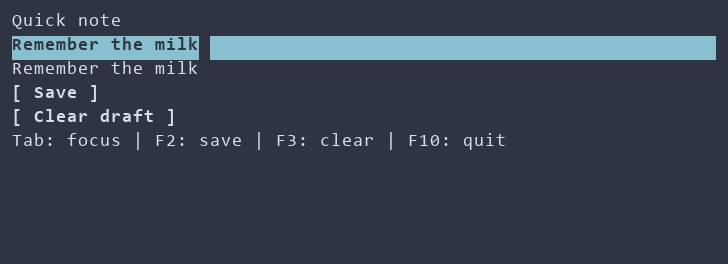
Note form after Save: Remember the milk in the editor and saved line, with Save and Clear draft buttons.
The image shows output from the final program in a 64 × 10 in-memory terminal after Save, using the Nord theme. It is displayed through xterm.js; your terminal's font and colors may differ.
If startup fails, ui::runApp() reports the error to stderr after attempting terminal cleanup and returns a nonzero exit code. Description construction before runApp() follows ordinary C++ exception rules; use the factory overload to include that step in the error boundary. Diagnostics covers default and custom reports.
Further topics include shared state and layout. Other practical tasks are covered in the user guides.